

A suspicious link can leave you second-guessing everything you did next. That’s the moment people want to know: did I just give someone access to my account? and whether one click puts their account at risk.
The scary part is that phishing pages often look familiar. They may copy your bank, delivery service, email provider, or workplace login to make you trust them.
In this guide, you’ll learn how phishing links work, what warning signs to check, and what to do fast if you clicked one.
Key Takeaways
- A phishing link is a fake or dangerous link made to steal passwords, payment details, personal information, or push harmful downloads.
- Phishinaaes, or delivery and payment alerts.
- Common warning signs include misspelled URLs, strange sender addresses, shortened links, fake offers, login requests, and pressure to act fast.
- Clicking a phishing link does not always mean you are hacked, especially if you closed the page without entering information or downloading anything.
- Entering sensitive information is the bigger risk, including passwords, card details, recovery codes, or one-time login codes.
- If you clicked a phishing link, close the page, stop interacting, change exposed passwords, enable two-factor authentication, scan your device, and contact your bank if payment details were shared.
What Is a Phishing Link?
A phishing link is a fake or dangerous link designed to trick you into clicking, logging in, downloading something, or sharing private information.
It may look like it came from a trusted company, but the real goal is usually to steal your data.
Phishing links often try to get:
- Passwords: Fake login pages collect your username and password.
- Bank details: Some pages ask for card numbers, billing info, or payment confirmation.
- Email access: If attackers get into your email, they may reset passwords for other accounts.
- Personal information: Names, phone numbers, addresses, and ID details can be collected.
- Malware downloads: Some links push you to install a fake file, app, browser update, or document viewer.
Simple rule: a phishing link pretends to help you, but it is really trying to take something from you.
What Does a Phishing Link Look Like?
A phishing link can look normal at first. That’s why people click them.
The message may say your package is delayed, your account is locked, your payment failed, or you need to verify something quickly.
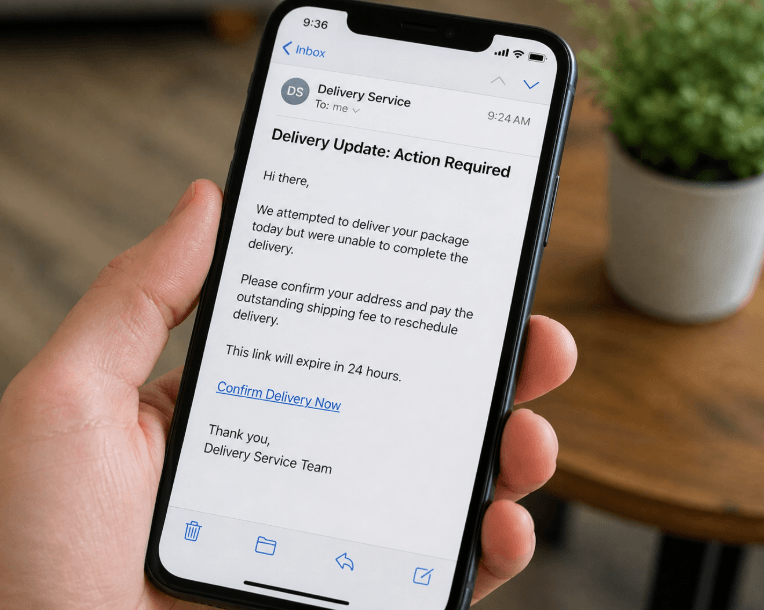
Look for these warning signs:
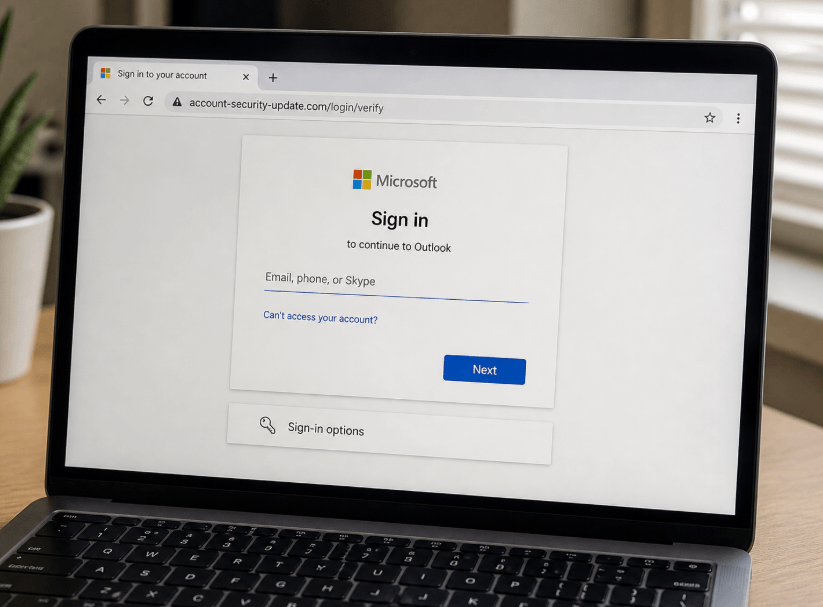
- Misspelled website names: A fake link may look close to the real brand, but with extra letters, symbols, or strange spelling.
- Urgent wording: Messages like “Act now,” “Your account will close,” or “Payment failed” are used to make you panic.
- Strange sender address: The display name may look real, but the actual email address or phone number may not match.
- Shortened links: Links like bit.ly or tinyurl can hide the real destination.
- Too-good offers: Free gift cards, refunds, prizes, or surprise rewards are common tricks.
- Login requests: Be careful when a link takes you to a page asking for your password or payment details.
Simple rule: if the message pressures you to click fast, slow down and check the link first.
📖 You May Also Like This “Tech Security” Article: How to Remove Your Information From the Dark Web?
How Do Phishing Links Work?
Phishing links work by creating trust first, then using that trust to get you to act.
The link may lead to a fake website that looks like a real login page. You enter your details, and the attacker collects them. Sometimes the link may also start a download or send you to a fake support page.
Here’s how it usually happens:
- Step 1: You receive a message: It may come through email, text, social media, WhatsApp, or a fake website pop-up.
- Step 2: The message creates pressure: It may warn about a locked account, failed payment, missed delivery, or security alert.
- Step 3: You click the link: The link takes you to a fake page or suspicious download.
- Step 4: You enter information: If you type your password, card details, or verification code, the attacker may receive it.
- Step 5: The attacker uses it: They may try to log in, steal money, reset passwords, or target more accounts.
Example: A fake delivery text may say your package is stuck and ask you to pay a small fee. The page looks real, but it collects your card details.
Simple rule: phishing links work because they look urgent, familiar, and believable enough to make you act before checking.
What Happens if You Click on a Phishing Link?
Clicking a phishing link does not always mean your account was hacked right away.
What matters most is what happened after the click.
If you only opened the page and closed it without entering anything, the risk may be lower. But if you typed a password, entered payment details, downloaded a file, or approved permissions, the situation becomes more serious.
Here’s what can happen after clicking a phishing link:
- You land on a fake login page: The website may look like your bank, email provider, PayPal, Microsoft, Google, or another trusted company.
- Your password gets stolen: If you enter login details, attackers may quickly try to access that account or reuse the password elsewhere.
- Payment details may be exposed: Fake billing or delivery pages may ask for card numbers, addresses, or security codes.
- A harmful file may download: Some phishing pages push fake apps, browser extensions, updates, PDFs, or attachments.
- You may notice suspicious account activity: Login alerts, password reset emails, unknown messages, or unusual account changes can be warning signs.
Simple rule: clicking alone is not always the worst part. Entering information, downloading files, or approving access is usually where the bigger risk starts.
Can a Phishing Link Install Malware?
Yes, a phishing link can lead to malware, especially if the page pushes you to download or install something.
In many cases, malware needs another action after the click, like opening a file, installing an app, or allowing permissions.
Here are some common ways it happens:
- Fake downloads: The page may push a fake document, app, browser extension, or software update.
- Malicious attachments: Some phishing links download infected files that install harmful software when opened.
- Permission requests: Fake apps or websites may ask for access to files, contacts, messages, camera, microphone, or device settings.
- Fake security warnings: Some pages pretend your device is infected and pressure you to install a “security tool” that is actually malware.
If you downloaded, opened, or installed anything after clicking the link:
- Delete suspicious files or apps
- Run a security scan
- Update your device and browser
- Change important passwords from a safe device
Simple rule: phishing malware usually becomes more dangerous after a file is downloaded, opened, or installed.
How to Know if You Clicked a Phishing Link
Sometimes you know right away. Other times, the page looks real enough that you only realize it later.
Start by checking what happened after the click.
- The website looked slightly wrong: The logo, layout, URL, spelling, or page design may have felt off.
- The link asked for urgent login: Fake pages often ask you to “verify,” “unlock,” or “confirm” your account.
- The URL looked strange: Extra words, misspellings, random numbers, or unusual domains are common signs.
- A file downloaded automatically: Any unexpected download after clicking a link should be treated carefully.
- You entered private information: Passwords, card details, recovery codes, or one-time codes increase the risk.
- You got account alerts afterward: Login warnings, reset emails, or security messages may mean someone tried to use your details.
- Your device acts strangely: New pop-ups, unknown apps, browser changes, or slow performance can be warning signs.
Simple rule: if the page asked for sensitive information or caused a download, assume the link was risky and take action.
What to Do if You Clicked on a Phishing Link
If you clicked a phishing link, don’t panic and don’t keep clicking around. The next steps depend on whether you only opened the page or actually entered information.
Act quickly, but stay calm.
- Close the page immediately: Don’t type anything else, don’t download anything, and don’t approve any pop-ups or permission requests.
- Disconnect if something downloaded: Turn off Wi-Fi or mobile data if a file, app, or browser extension downloaded unexpectedly.
- Change your password from a safe device: If you entered login details, use another trusted phone or computer to change that account password right away.
- Turn on two-factor authentication: Add 2FA to the affected account so attackers can’t log in with only your password.
- Check account activity: Look for unknown logins, password reset emails, changed recovery info, or messages you didn’t send.
- Contact your bank if payment info was entered: If you shared card details, call your bank or card provider and explain what happened.
- Run a security scan: Use a trusted antivirus or built-in security tools to check for harmful downloads or suspicious activity.
- Report the message: Mark the email or text as phishing so your provider can block similar attempts.
What to Do if You Clicked a Phishing Link on Your Phone
If you clicked a phishing link on your phone, the same rule applies: what happened after the click matters most. Opening a page is one thing. Downloading an app, entering a password, or giving permissions is more serious.
- Close the browser tab: Don’t interact with the page or tap any more buttons.
- Do not install anything: If the page asks you to download an app, update, cleaner, VPN, or security tool, stop.
- Check downloads: Look for any file or app that appeared after clicking the link. Delete anything you don’t recognize.
- Review app permissions: Check which apps have access to your camera, microphone, location, contacts, SMS, or files.
- Change passwords on another device: If you typed login details, use a different trusted device to update your password.
- Run a phone security scan: On Android, use Play Protect or a trusted mobile security app. On iPhone, update iOS and remove suspicious profiles or apps.
- Update your phone: Install the latest system update because updates often fix security weaknesses.
- Watch for account alerts: Check email, banking, social, and cloud accounts for unusual login attempts or changes.
Simple rule: don’t just delete the text. Check the phone, protect your accounts, and remove anything suspicious.